Overview
The LiveView real-time dashboard features a grid of “Cards”, which are containers that group related information and controls. The number of cards and type of information available will vary depending on the product.
The cards can be rearranged and/or hidden to customize the dashboard as needed as follows:
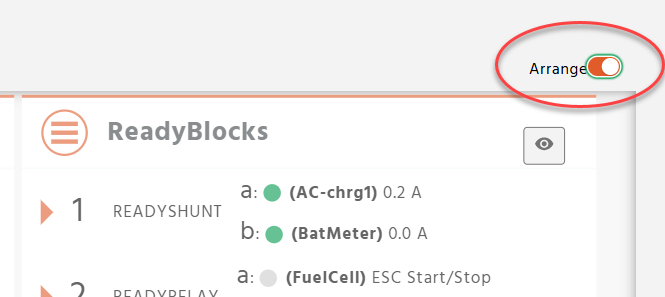
Step 1 - Click the Arrange slider in the upper right corner of the dashboard to move the cards around on the dashboard.
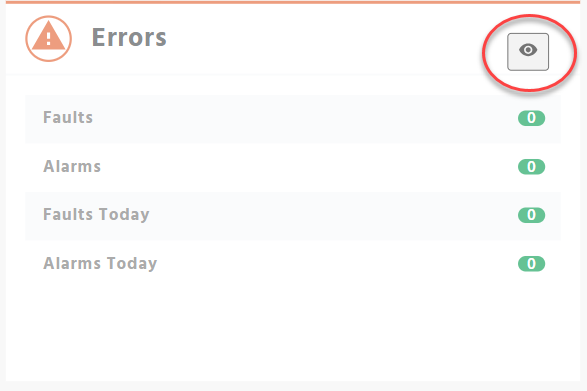
Step 2 - Click the Eye icon to toggle the visibility of any card on the dashboard.
Step 3 - When satisfied with the cards arrangement and visibility, click the Arrange slider to return to normal dashboard view. The dashboard configuration will be retained unless the unit is factory reset.
ReadyEdge Dashboard
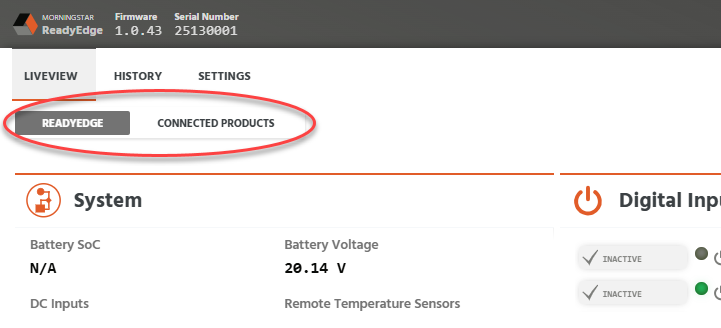
The ReadyEdge dashboard has two distinct views. One view for the ReadyEdge itself and a second view for Connect Products. You can switch between dashboard views by selecting a tab as shown in the screenshot below.
View #1 - ReadyEdge Dashboard View
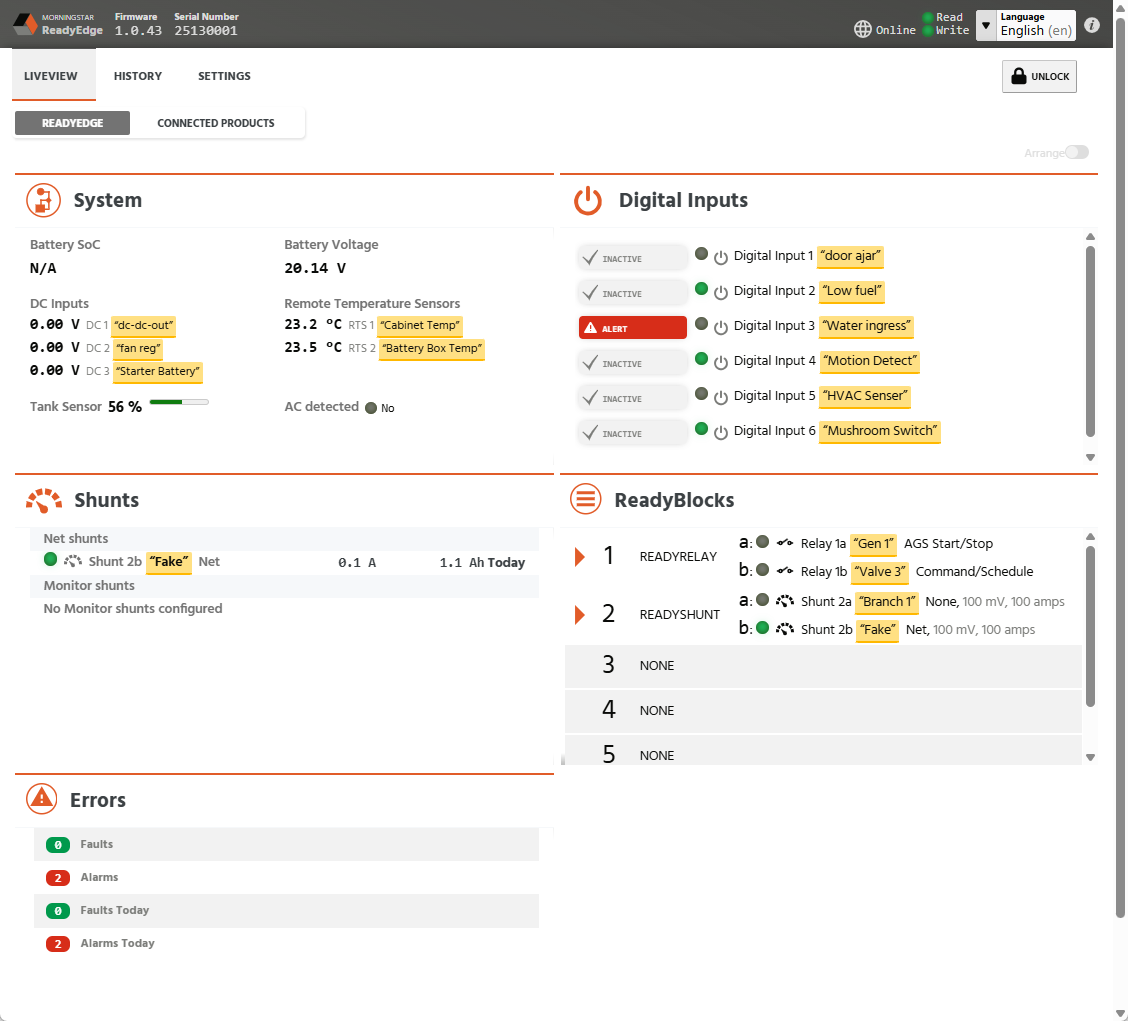
System - displays key values on overall system operation including Battery status, voltages, temperatures, tank level, and AC status
Digital Inputs - shows the current state for each Digital Input
Shunts - if a ReadyShunt block is installed, shunt current measurements will be displayed
ReadyBlocks - summary information on all ReadyBlocks including present status/state
Errors - displays Faults and Alarms that are currently active as well as any that have occurred today
View #2 - Connected Products Dashboard View
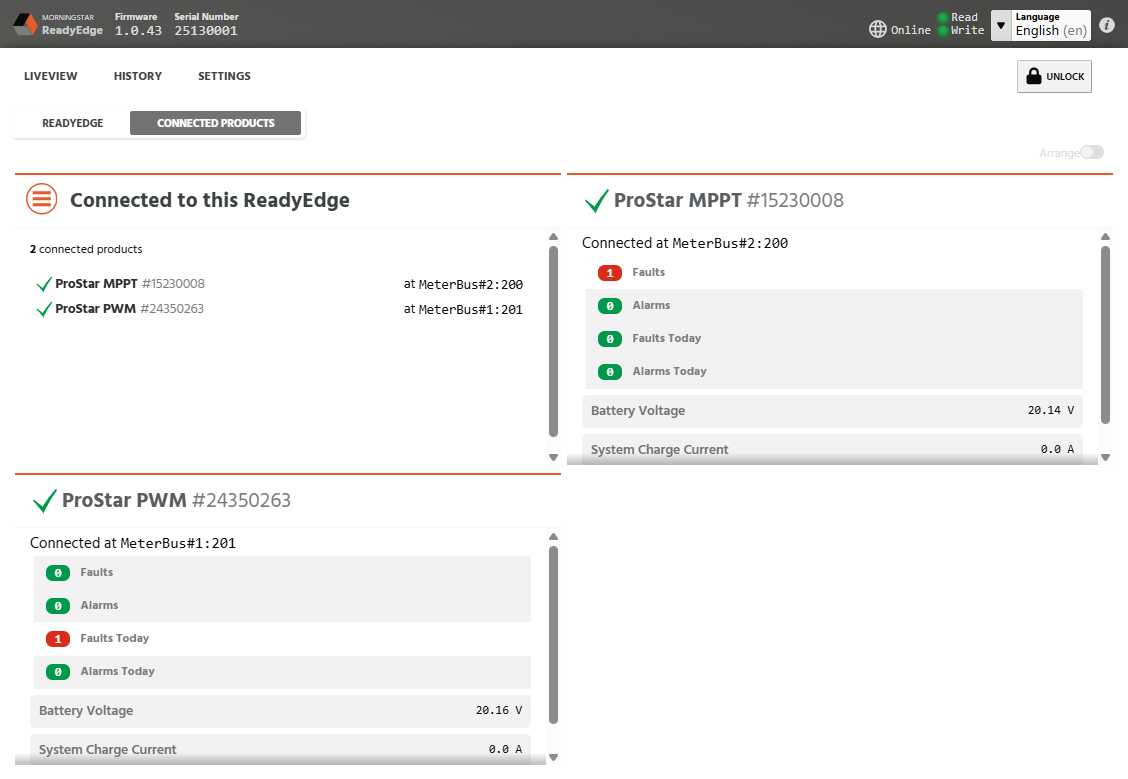
Connected to this ReadyEdge - Provides a summary view of all Morningstar products connected to the ReadyEdge including:
Green checkmark if they are currently connected and communicating
Product Serial number
Which physical port the product is connected to and the assigned Modbus ID
Product Cards (one card per Connected Product)
Any active faults/alarms and any faults/alarms that have occurred today
Battery Voltage and Charge Current
Detailed accounting of operating information