NOTE: The Morningstar Mobile App provides limited access to real time data and configuration settings. LiveView is the primary interface for ReadyEdge configuration at this time.
Morningstar Mobile is an app available for use with Android or iOS devices, and can be downloaded to a mobile device from either the Google Play Store (Android) or the Apple App Store (IOS).
Step 1: Download the App For Your Mobile Device
Android Devices
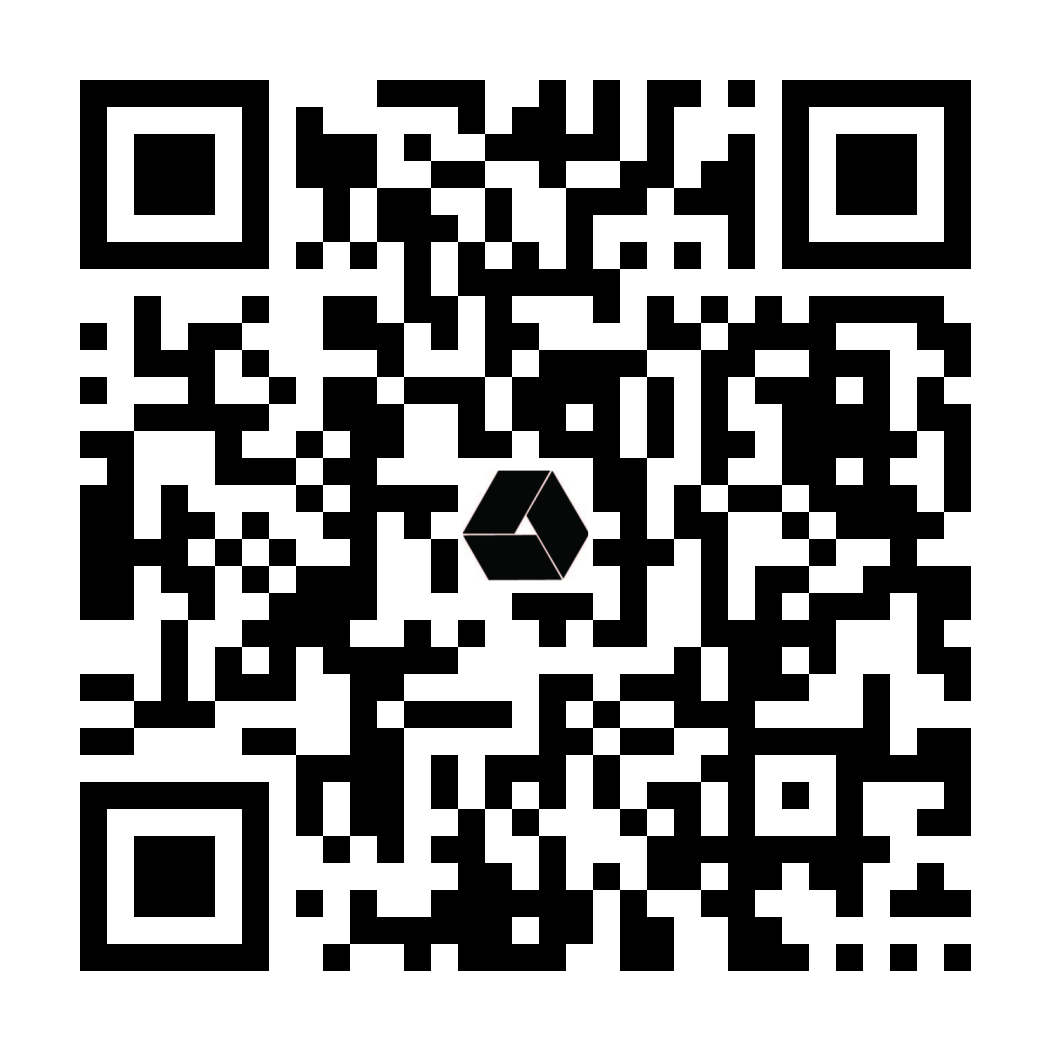
https://play.google.com/store/apps/details?id=com.morningstar.android
Apple iOS Devices
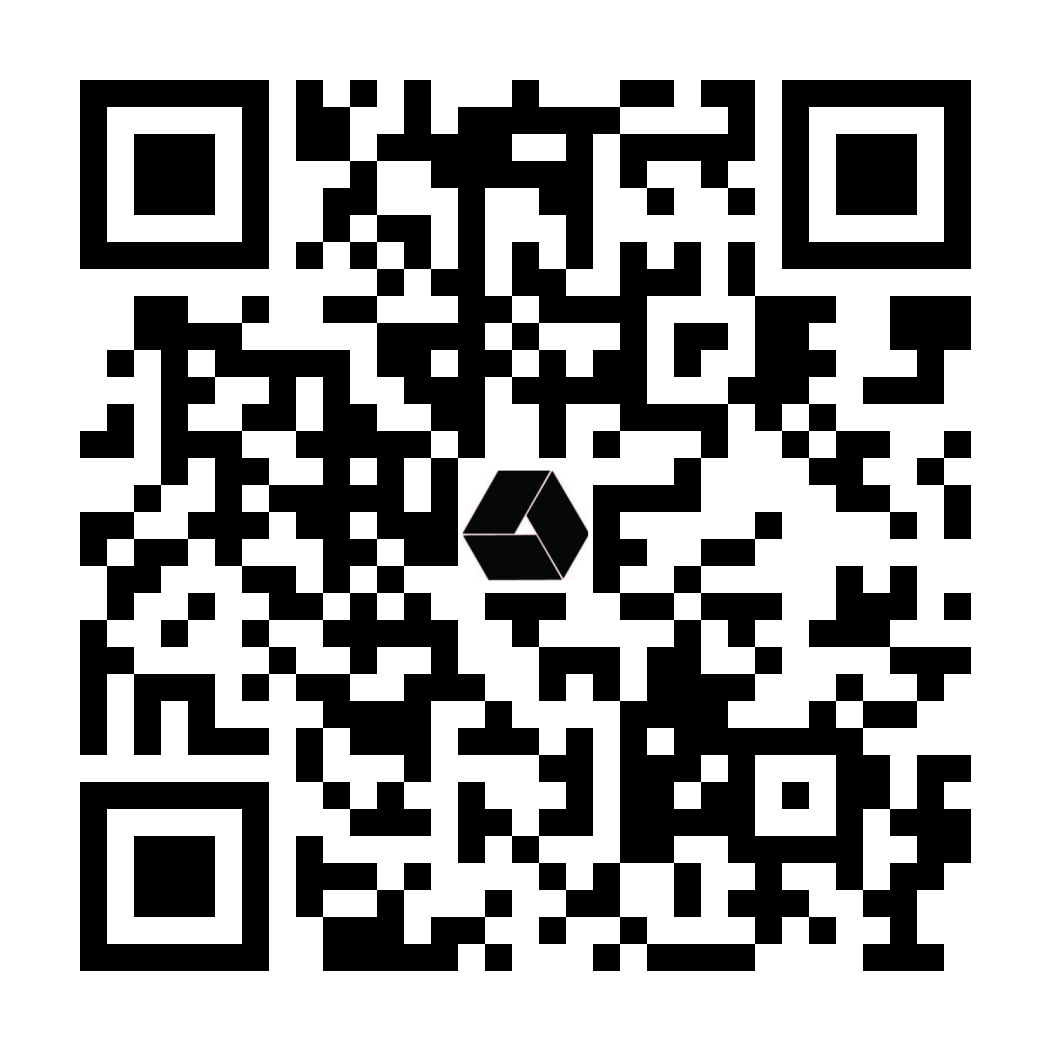
https://apps.apple.com/us/app/morningstar-mobile/id1638164491
Step 2: Enable Bluetooth® Radio
Bluetooth® must be enabled in the Network Setup menu in LiveView. See 3.7.4 LiveView: Network Configuration for instructions
Step 3: Discover and Connect with the ReadyEdge
Open the App on your mobile device. The app will immediately begin scanning for all compatible Morningstar products with Bluetooth® turned on. Choose your ReadyEdge from the device list and tap “Connect”.