The first step in connecting your Morningstar product to SolarConnect is to enable data transmission to the cloud. The product must connect to the cloud service and authenticate before it can be Claimed
NOTE: An internet connection is required to authenticate with the SolarConnect service.
Morningstar SolarConnect data service can be enabled through:
LiveView
Morningstar Mobile App
Enabling via LiveView
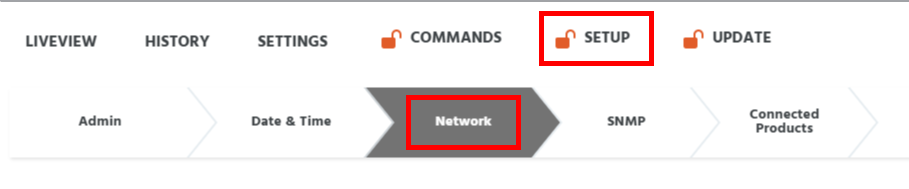
Open the LiveView webpage and enter the installer password to enable additional menu items.
Choose SETUP.
Select Network.
Scroll down to the SolarConnect section.
Toggle the slider button to Enable SolarConnect (this enables the product to connect to the cloud data service).
.png)
Claim Code
This is the device’s unique alphanumeric code required to claim your device within the SolarConnect service. See Claim a Device.
Cloud Connection
After the Solar Connect service has been enabled, use this to see the status of the connection.
Connected: The device has successfully made a connection and has authenticated with SolarConnect.
NotConnected: The device is unable to establish a connection or authenticate with the SolarConnect service.
Registration
Shows whether the device has been successfully Claimed.
Unknown: The device is not connected to SolarConnect, and therefore cannot obtain the registration status.
Registered: The device has been successfully claimed by an Organization within SolarConnect.
NotRegistered: The device has not yet been claimed by an Organization within SolarConnect. It is available to be claimed.
Enabling via Mobile App
Open the Morningstar Mobile App.
Connect (and pair if a new connection) to your Morningstar device.
Tap the top right corner menu to enter the installer password.
Once the installer password is entered Select Setup.
Scroll down to the SolarConnect section and expand.
Toggle the slider button to Enable SolarConnect (this enables the product to connect to the cloud data service).
.png)